App control vs. remote control vs. voice assistant: can you use a robot vacuum without an app?
Most robot vacuums will clean at the press of a button, but rooms, schedules and no-go zones live in the app. I compare buttons, remotes, apps, voice assistants and Matter.
We choose products independently. We may earn a commission through links on this page; your price stays the same. Affiliate policy
On this page
The short answer
- Yes, you can use most robot vacuums without an app. Buttons on the robot start a whole-home clean and send it back to the dock.
- Room cleaning, schedules, no-go zones, mop settings and firmware updates almost always need the app.
- Voice assistants sit on top of the app and usually need internet. A few models offer offline voice commands.
- My favorite compromise: connect once to update and draw no-go zones, then use buttons day to day.
Why so many people want a robot vacuum without an app
Some of the most common questions I get are not about suction or mopping. They are some version of: "Can I just press a button and have it clean?"
The reasons vary. Some people don't want another account and another app. Some are setting up a robot for a parent who doesn't use a smartphone. Some are uneasy about a camera robot sending data to a cloud server. And some just have unreliable Wi-Fi.
The good news is that most robots will clean without an app. The less obvious news is how much you give up when you skip it.
In this guide, I compare the three ways to control a robot, the physical buttons and remote, the app, and voice assistants, and explain exactly which features need which, so you can choose the setup that fits your home.
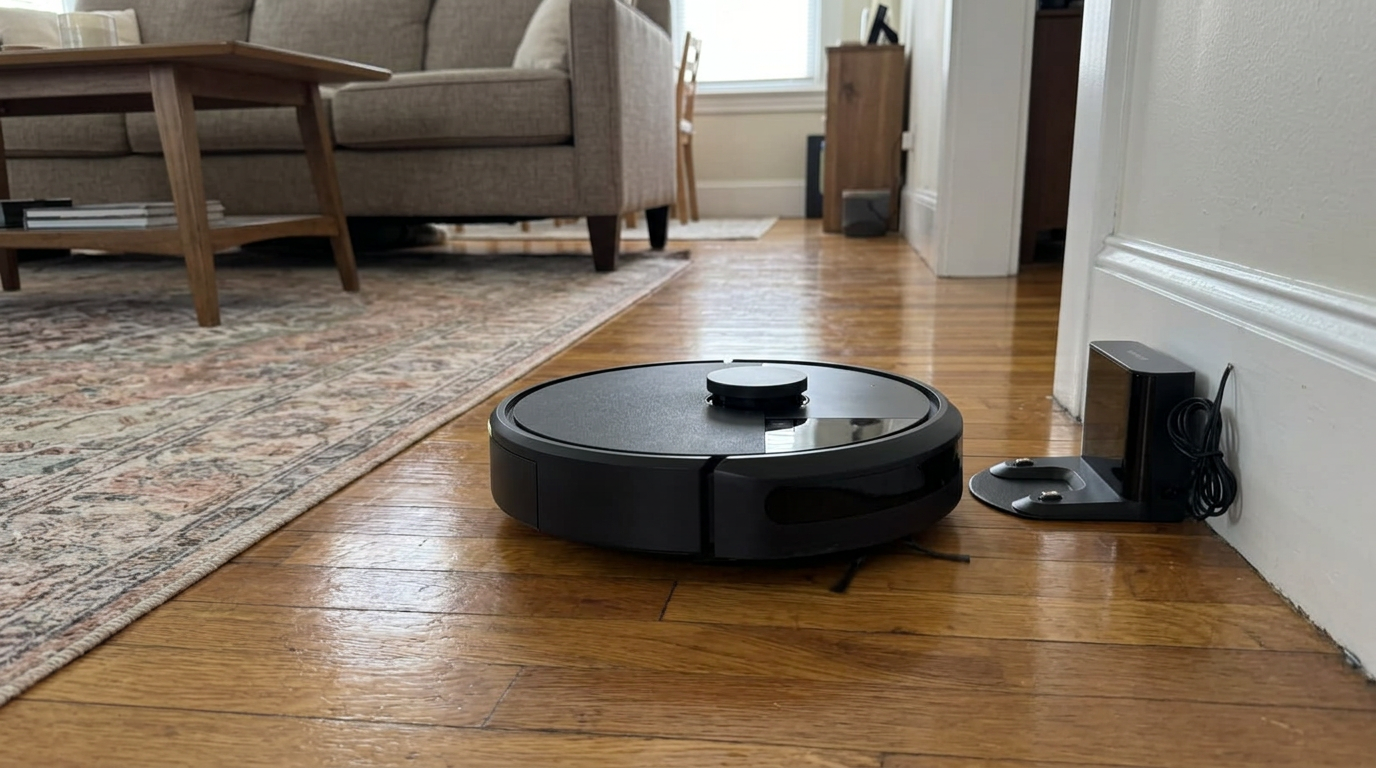
Robots like the Roomba 105 Vac have buttons on top for starting a clean and sending the robot home without touching a phone. Read my iRobot Roomba 105 Vac review →
Option 1: buttons and remote controls
Almost every robot vacuum has at least one physical button, and most have two or three: clean, return to dock and sometimes spot clean.
Roborock's support team confirms its robots work without Wi-Fi and can run a full-home clean, a spot clean and return to the dock with the push of a button. Dreame says the same in its guide to running a robot without Wi-Fi, and adds that maps and boundaries stored on the robot are still respected when you press the button.
A Swiss electronics retailer, Galaxus, asked six major manufacturers this exact question for an in-depth article. The consistent answer was that buttons start a whole-home clean and send the robot home, while nearly everything else needs the app.
Some budget robots go one step further and include an infrared remote. Eufy describes a model whose remote lets you steer the robot, change cleaning modes and adjust suction without any app at all, in its offline buying guide.
Good to know: A remote or buttons are perfect for someone who just wants "clean the floor now." They are frustrating for anyone who wants the robot to skip the nursery or clean the kitchen twice.
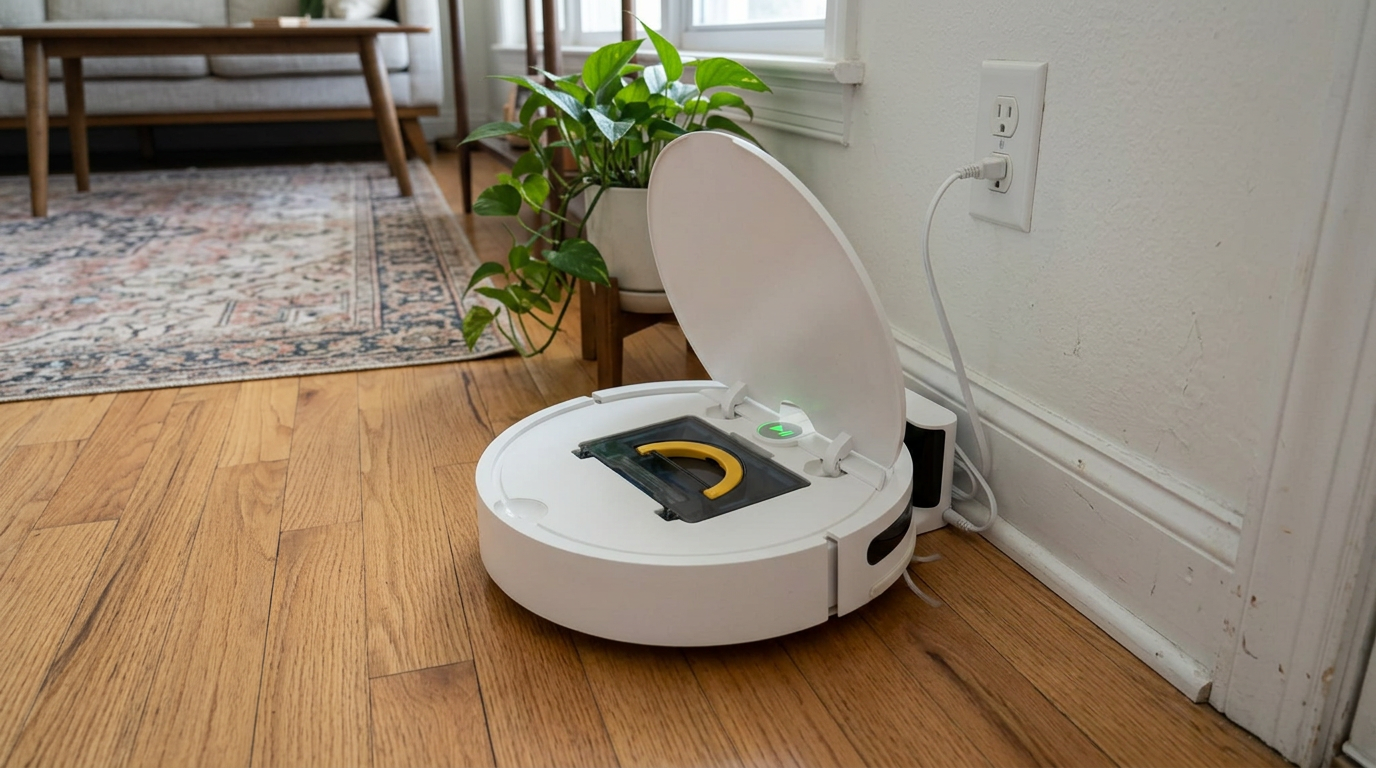
Entry-level robots like the ILIFE V2 are the kind of model buyers often choose when they want simple, low-fuss operation. Read my ILIFE V2 review →
Which features need the app, and which don't
This is the table I wish every product page included. It shows which features you keep with buttons alone, which need the app, and which need a voice assistant on top.
| Feature | Buttons / remote | App | Voice assistant |
|---|---|---|---|
| Start a whole-home clean | Yes | Yes | Yes |
| Send the robot home | Yes | Yes | Yes |
| Spot clean | Often | Yes | Sometimes |
| Change suction level | Remote only, on some models | Yes | Sometimes |
| Clean a specific room | No | Yes | Yes, once rooms are named in the app |
| Schedules | Rarely | Yes | Via routines |
| View and edit the map | No | Yes | No |
| No-go zones and virtual walls | No (magnetic strips on some budget models) | Yes | No |
| Mop water level and carpet rules | No | Yes | No |
| Firmware updates | No | Yes | No |
| Maintenance reminders | Lights or beeps only | Yes | No |
The pattern is simple. Buttons give you "clean everything now." The app gives you control over where, when and how. Voice gives you a quicker way to trigger what you already set up in the app.
Firmware updates are the one item I would not skip lightly. Updates often fix navigation bugs, improve obstacle recognition and patch security issues. A robot that never connects never gets them.
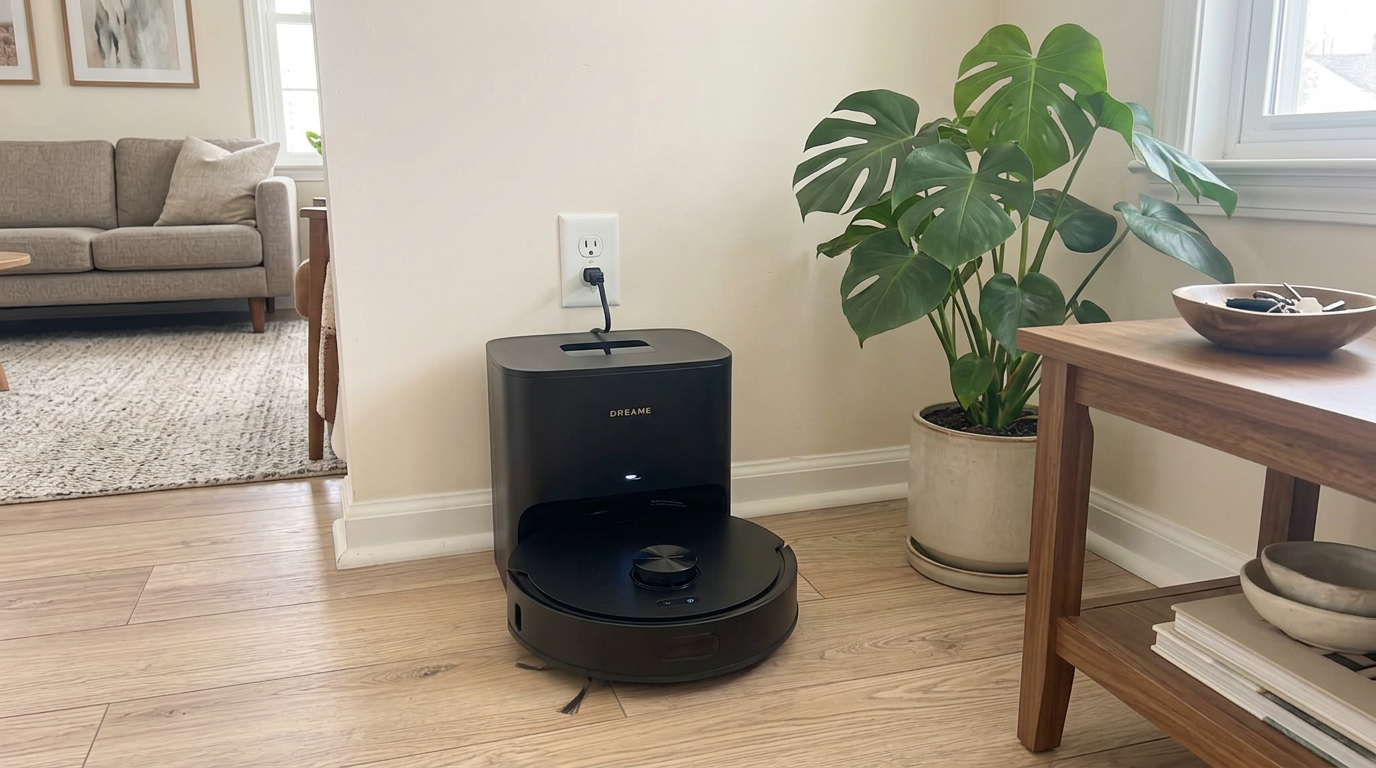
Mid-range robots like the D20 Air Plus get much of their usefulness from app features such as room selection and no-go zones. Read my Dreame D20 Air Plus review →
Option 2: the app, where most of the features live
I know an app can feel like overhead. But for a mapping robot, the app is where most of the value lives.
Room-by-room cleaning is the big one. I can send the robot to the kitchen after dinner without it touching the bedrooms, or schedule the entryway every day and the guest room once a week.
No-go zones are next. Drawing a box around the dog bowls or the cable nest behind the TV prevents more stuck robots than any obstacle sensor I have used.
Then there are the settings that turn a decent robot into a great one: suction per room, mop water per floor type, carpet rules, Do Not Disturb hours and cleaning order.
- Room-by-room cleaning and schedules
- No-go zones and virtual walls
- Per-room suction and mop settings
- Maintenance alerts and firmware updates
- Account and cloud sign-up
- Needs Wi-Fi for remote control
- Data sharing to review
- Another app on your phone
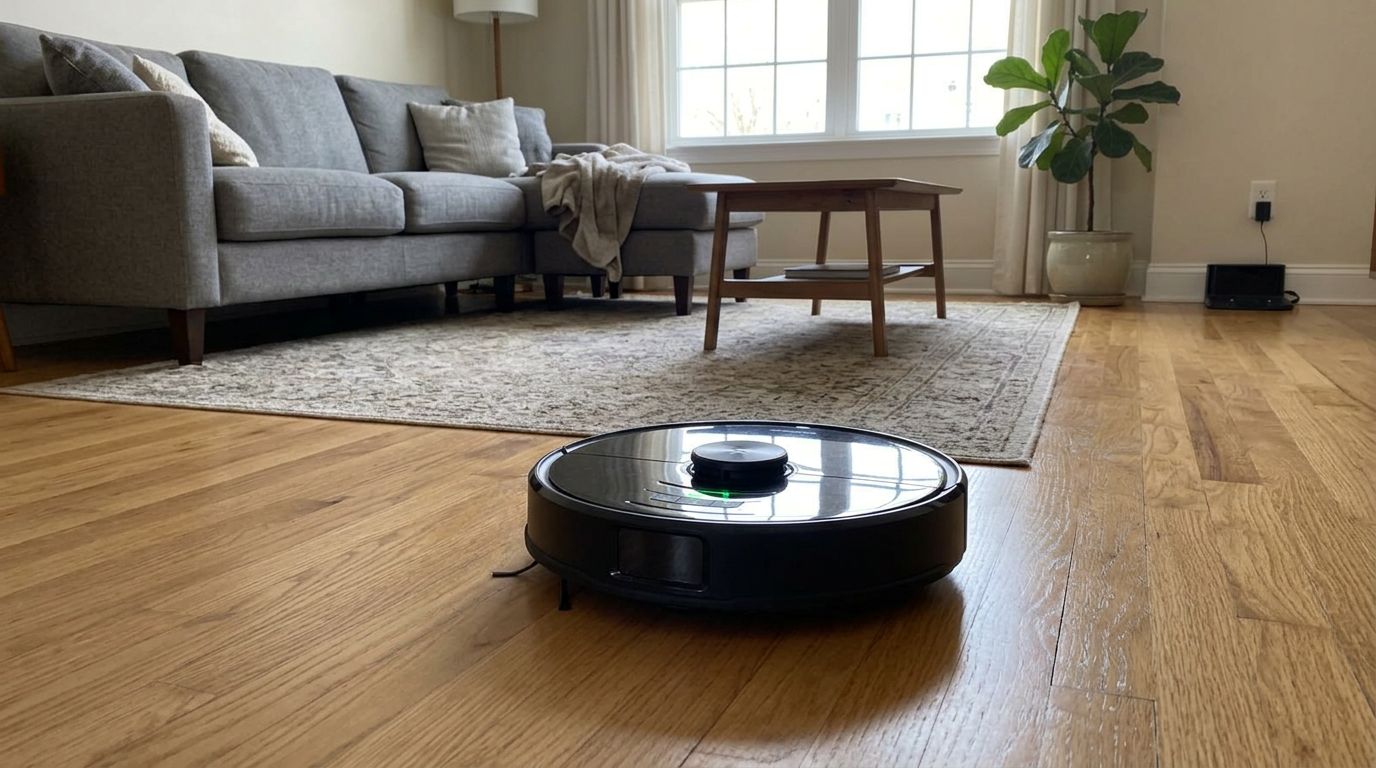
Robots like the Q7 M5+ become far more capable once you use the app to name rooms and set no-go zones. Read my Roborock Q7 M5+ review →
Option 3: voice assistants and Matter
Voice control is a layer on top of the app, not a replacement for it. You usually set up the robot in the brand's app, link it to your voice assistant, and then say things like "start cleaning" or "clean the kitchen."
Eufy points out in its offline guide that voice commands through common smart home assistants need an internet connection, because your request travels through that assistant's service.
There are exceptions. Dreame says select North American models support built-in offline voice commands, with more than 40 phrases that work with no internet at all, in its Wi-Fi guide.
The newest piece is Matter, the cross-brand smart home standard. It is changing how robots connect to Apple, Google, Amazon and Samsung homes.
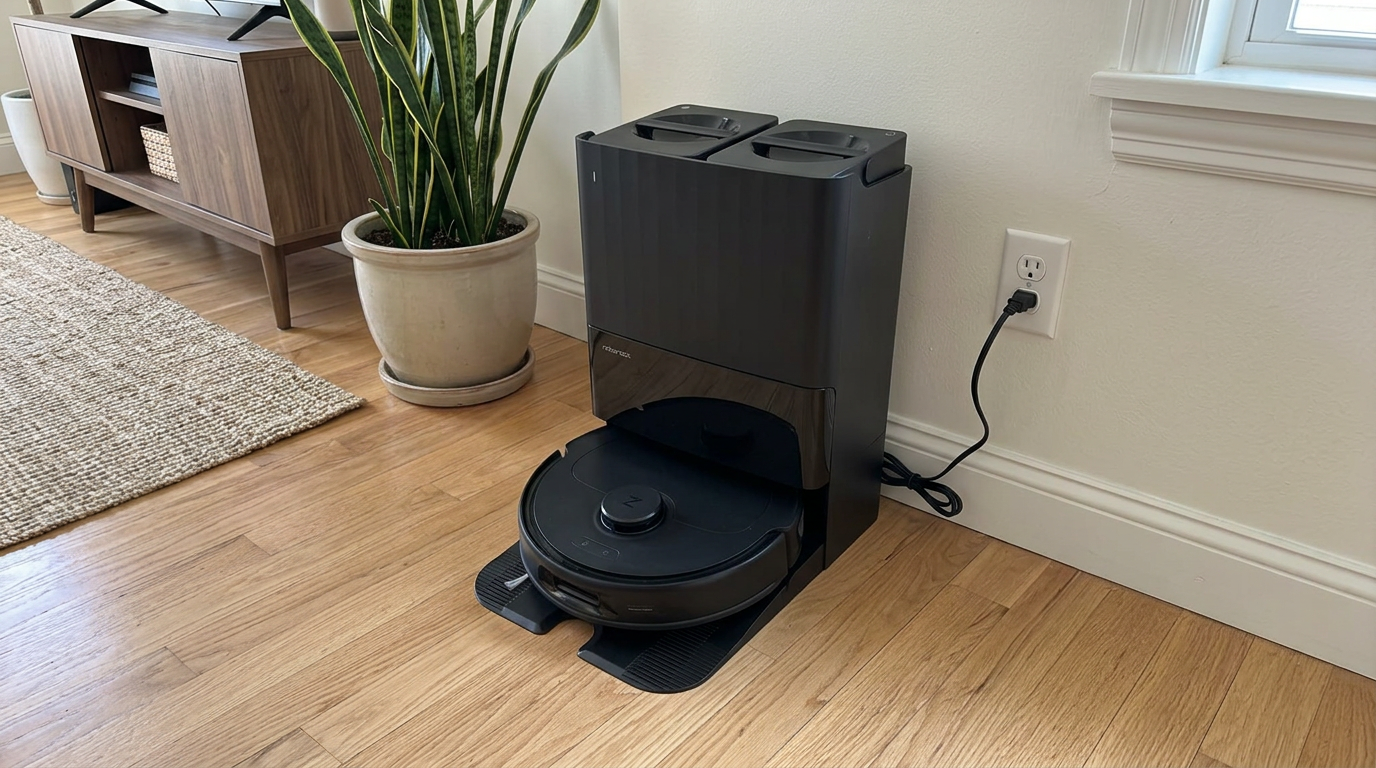
Many current Roborock models, including the Qrevo line, work with major voice assistants once they are linked in the app. Read my Roborock Qrevo S Pro review →
Wi-Fi bands and privacy: what to know before you connect
Two practical issues trip people up when they do decide to use the app.
The first is Wi-Fi band. Many robot vacuums connect only to 2.4 GHz Wi-Fi, not 5 GHz. If your router combines both bands under one network name, setup can fail until you temporarily separate them or move closer to the router. Check the manual for your exact model.
The second is privacy. Connecting the robot sends data such as maps, cleaning history and sometimes photos from an obstacle camera to the manufacturer's cloud. I cover what gets stored and how to limit it in my guide to robot vacuum cameras and privacy.
If privacy is your main concern, a robot used with buttons only is the most private option. A middle ground is to connect once for setup and updates, then keep the robot on a guest network or turn off features like photo uploads.
My setup tip: Before you start setup, stand next to the router with the robot and your phone. Most failed setups I have seen came down to weak signal or the 2.4 GHz issue, not a faulty robot.
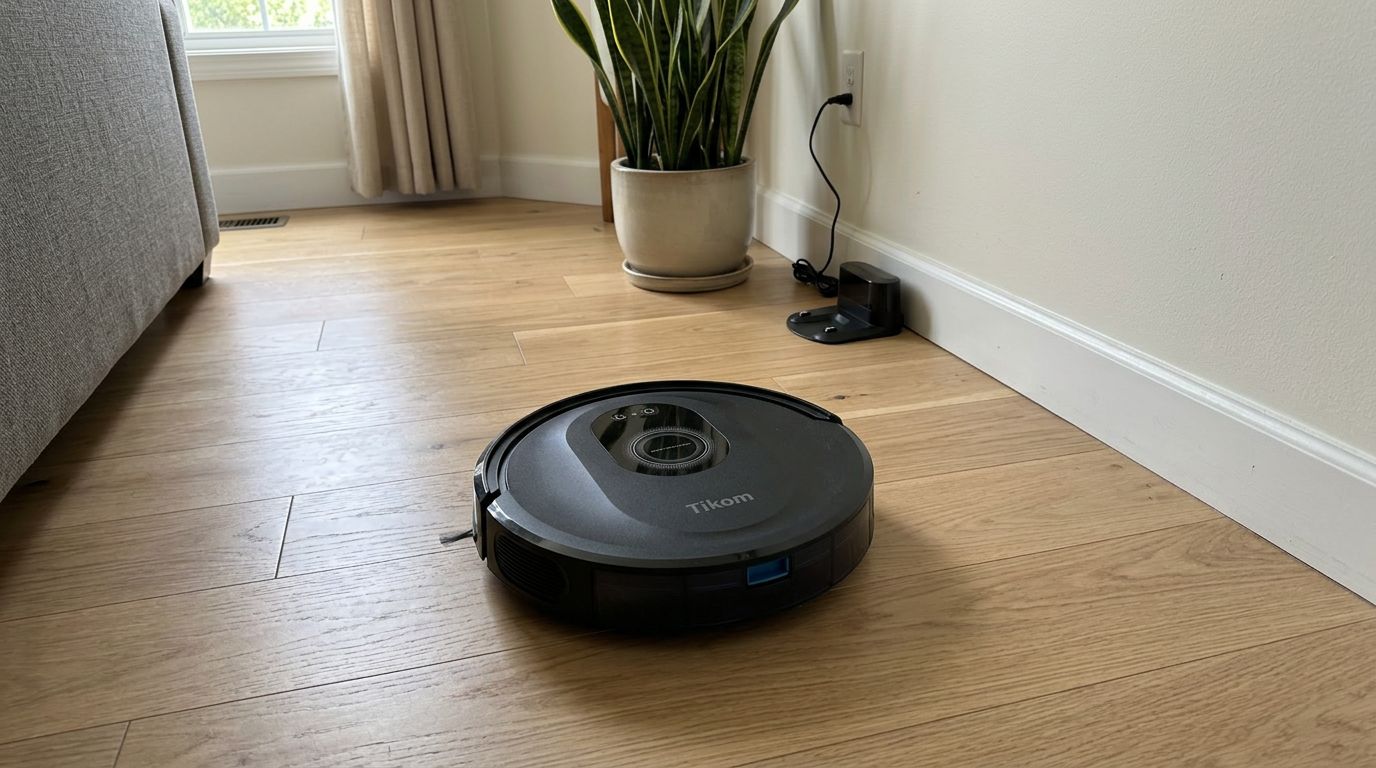
Budget robots like the Tikom combo are popular with buyers who want simple controls, but check whether the features you need are app-only. Read my Tikom Robot Vacuum and Mop Combo review →
Which control style fits your household?
Here is how I match a control style to the person who will actually use the robot.
| Situation | Best control setup |
|---|---|
| Parent or grandparent who avoids smartphones | Buttons or a remote; set up no-go zones once in the app for them if possible |
| No Wi-Fi at the property | Buttons or remote; a robot with on-board map memory |
| Privacy-first household | Buttons only, or one-time setup then a guest network with uploads off |
| Busy family with several rooms | App with schedules and room cleaning, plus voice for quick runs |
| Smart home enthusiast | App plus Matter or a voice assistant for routines |
| Renters or second homes | App for setup, buttons for day-to-day use by guests |
There is no wrong answer here. A robot that runs every day from a button press is cleaning more than a fully featured robot that sits on its dock because nobody wants to deal with the app.
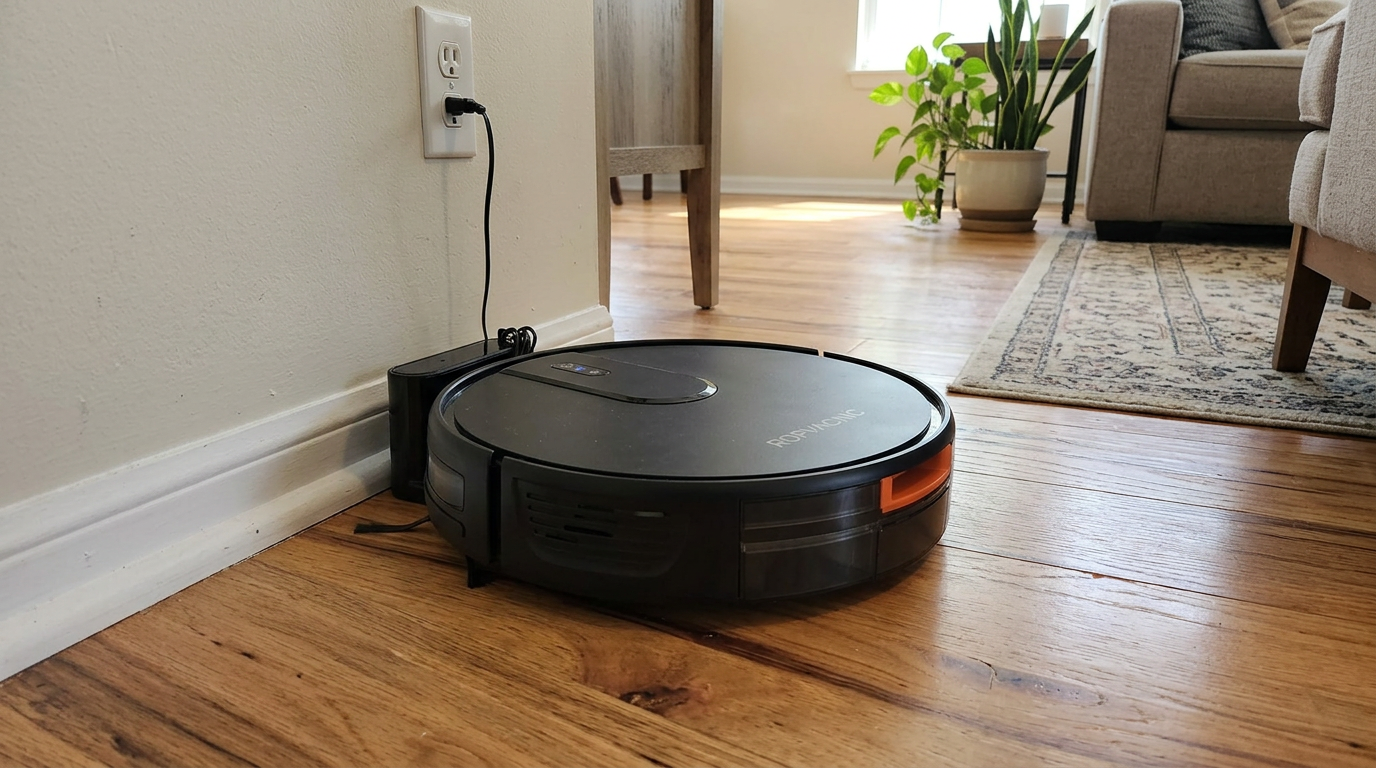
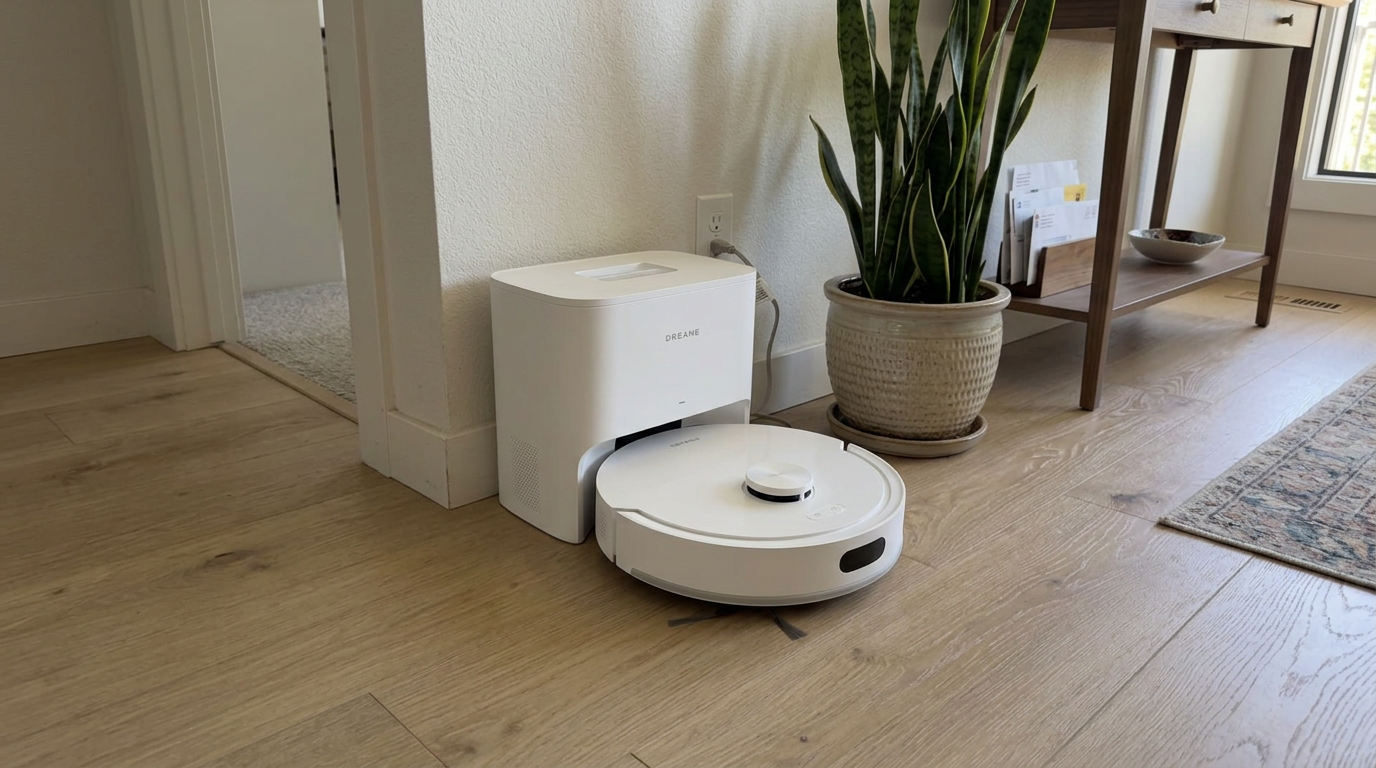
Simple combo robots like the ROPVACNIC suit people who want floors cleaned with as few taps as possible. Read my ROPVACNIC Robot Vacuum and Mop Combo review →
How I set up a robot for someone who will not use the app
- Connect once and update the firmwareInstall every available update before handing it over. Updates often improve navigation and fix bugs.
- Run a mapping pass with the floor clearedLet the robot build a clean map. On robots that store maps locally, button-started runs will follow it.
- Draw no-go zonesBlock off pet bowls, cable areas, thick rugs and anywhere the robot gets stuck. These rules usually keep working when the robot is started by a button.
- Set sensible defaultsChoose Standard suction, carpet boost on and a low mop water level. Button-started cleans use these saved settings on many models.
- Label the buttonsA small sticker with "Clean" and "Home" helps someone who only uses the robot occasionally.
- Show the bin and brushPoint out how to empty the bin and clear hair. That is the one maintenance step that cannot be done by button.
Frequently asked questions
Can I use a robot vacuum without an app?
Do robot vacuums work without Wi-Fi?
Which robot vacuums have a remote control?
Do Alexa and Google voice commands need internet?
What is Matter for robot vacuums?
Will my no-go zones work if I stop using the app?

Sarah has tested vacuums, mops, air purifiers and dehumidifiers since 2017. Before joining BrasQ, she spent five years as a test coordinator at a national consumer advocacy group. She studied industrial design at Ohio State and lives in Columbus with her family and a long-haired cat.
- First published.
- Roborock support: can the robot work without Wi-Fi
- Dreame: how to use a robot vacuum without Wi-Fi
- Eufy US: using a robot vacuum without Wi-Fi
- Galaxus: robotic vacuum cleaners without Wi-Fi and an app (manufacturer responses)
- Hackster: Matter 1.2 adds nine device categories including robot vacuums
- Matter Alpha: Matter robotic vacuum cleaner products
- IoT M2M Council: Roborock adds Matter to robot vacuum cleaners